Integrations · Slack

Integrate with Slack

This article walks through how to set up and configure Klaar's Slack app, including how it brings performance workflows and insights directly into the flow of work.

App capabilities

Once Klaar is integrated with Slack, you can:

Goals

Get reminders to update goals and complete check-ins directly from Slack.

1-on-1s

Receive reminders to schedule sessions and create 1-on-1s manually or by linking a calendar event.

Continuous Feedback

Give feedback, request feedback, recognize teammates, and add private notes directly in Slack.

Reviews

Stay up to date with notifications for review launches, upcoming or extended deadlines, and when you're added to a review.

Once a Klaar admin sets up the Slack integration, anyone with both a Klaar and Slack account can enable notifications, add the Klaar app to Slack, and complete key performance workflows without leaving Slack.

Connect Klaar to Slack

Note: You will need admin permissions in both Slack and Klaar to complete this setup.
1

Go to the Klaar login page

2

Enter your work email that you use for Klaar
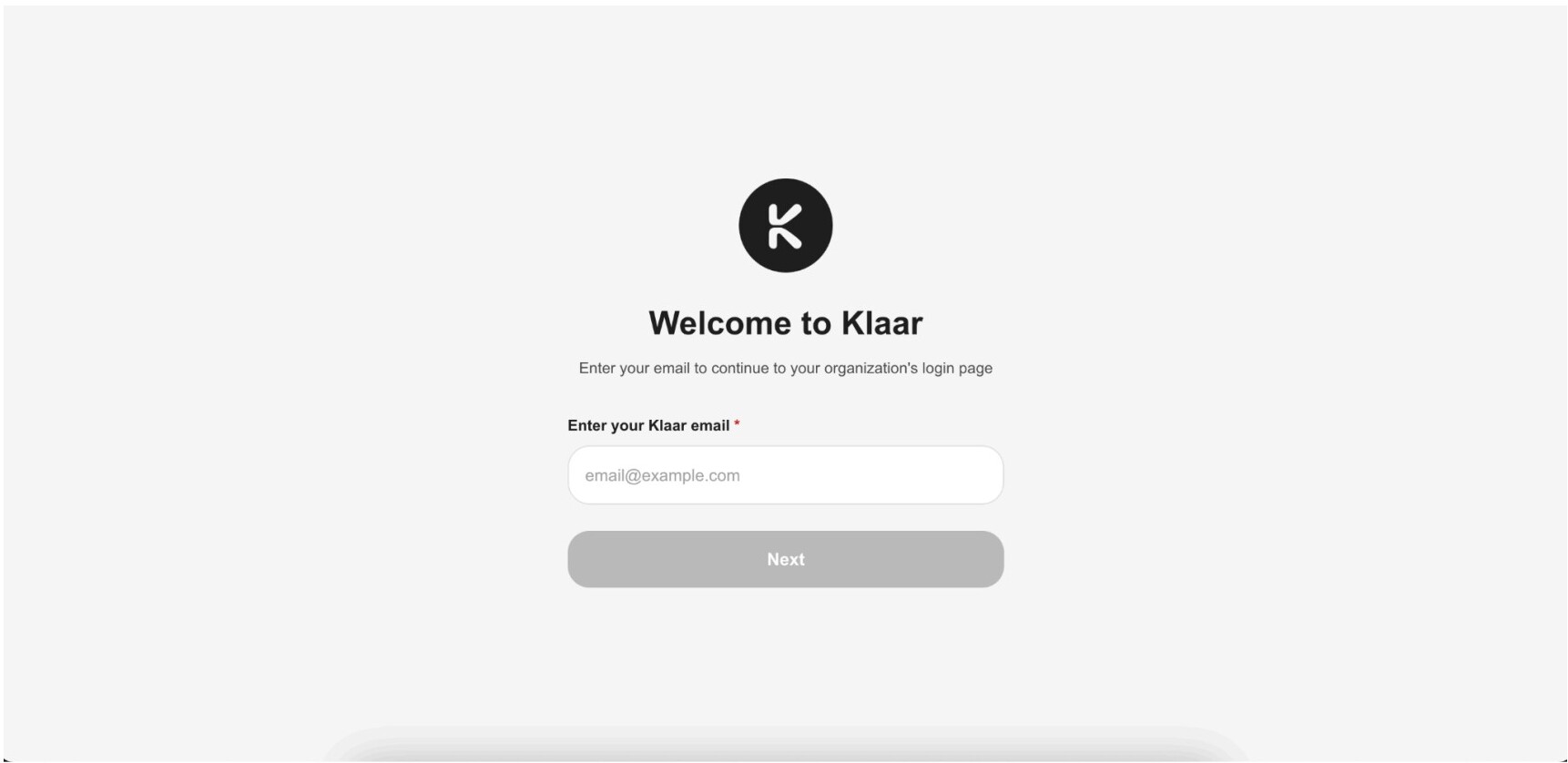
This should be the same as the email you log in to Klaar with. Once you enter your work email, it will take you to your organization's Klaar workspace.
3

Log in to Klaar using your preferred method

Your login method will depend on your organizational IT policies. It will be one of the three options you see on the screen.
4

Go to Settings → Workspace → Integration
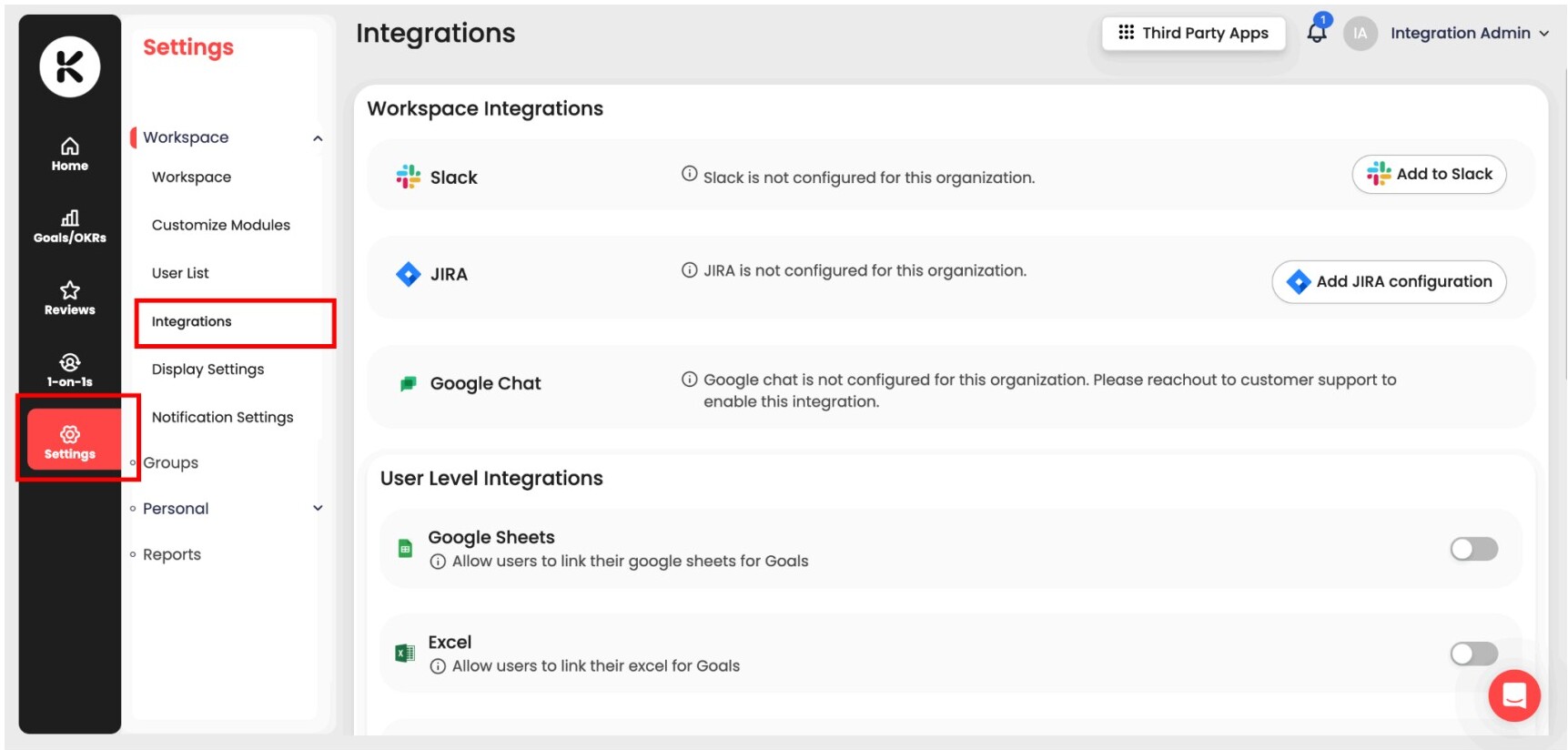
Open the Settings menu, choose Workspace, and then select Integration.
5

Locate the Slack integration

On the Integrations page, find the Slack option under Workspace Integrations and click 'Add to Slack'.
6

Start the Slack connection

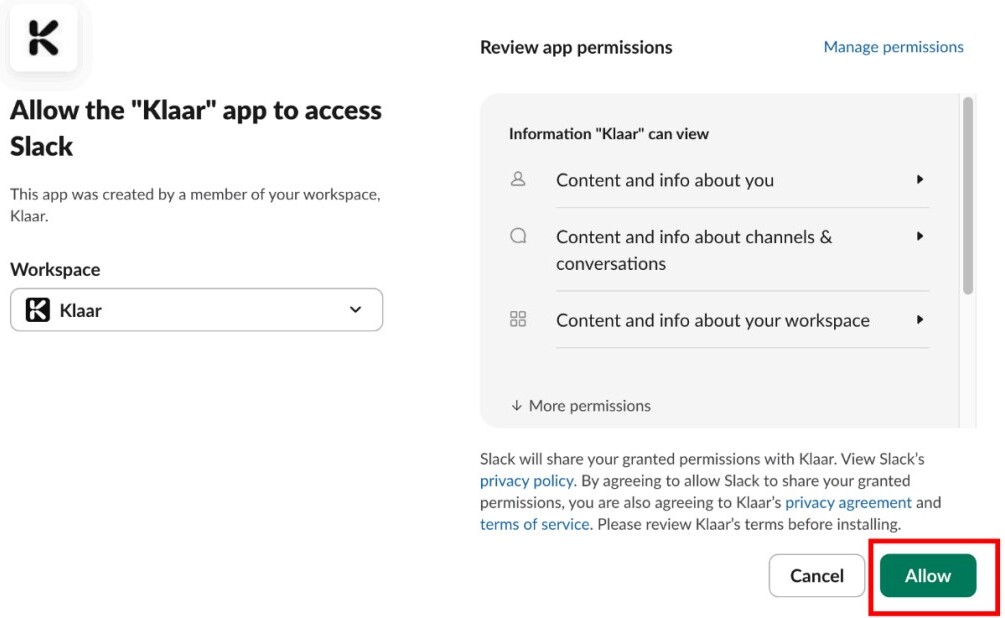
From the Workspace dropdown, select the Slack workspace you want to connect to Klaar, then click Allow to grant access.
7

You're connected

After clicking Allow, you will be redirected back to Klaar. Your Slack workspace is now connected, and a confirmation message will appear: "Slack has been configured successfully." All users in the workspace will now automatically start receiving Klaar notifications on Slack.

FAQs

What permissions do I need to set up and manage the Klaar app for Slack?
You must be both a Klaar account admin and a Slack administrator to set up and manage the Klaar Slack app.
My company uses multiple Slack instances. Can I integrate them all with our Klaar account?
No, you can only integrate one instance of Slack with a company in Klaar.
Once I set up Slack, how can employees benefit from it?
Once your organization is connected to Slack, employees using the same email address for Klaar and Slack can add the Klaar app and manage performance workflows directly in Slack (update goals and complete check-ins, schedule and create 1-on-1s, give and request feedback, recognize teammates, and stay on top of review reminders) without leaving Slack.
Does the Slack integration replace using Klaar?
No. Slack enhances Klaar by bringing key workflows and reminders into the flow of work, while the full performance experience remains in Klaar.
How long does it take to set up the Slack integration?
Setup typically takes just a few minutes once admin permissions are in place.
Need a hand?

Still stuck on setup?

Our team can help you get Klaar and Slack talking to each other in minutes.

Contact support